

How to Hide Device ID and Modify Your Browser Fingerprint so that the Platform Cannot *See* Your Real Device?
Your IP isn't the only thing that identifies you. Your browser fingerprint can too. This piece covers how to check it and the real ways to mask it: anti-detect browsers, privacy browsers, and extensions.
Browser fingerprint is a collection of technical signals that make up your PC, where each individual detail and their combination form the most unique and specific digital ID which makes it possible for trackers to identify you fast with worrying accuracy. Similar to your IP address, browser fingerprint is one of the main online identifiers used for spotting and tracking you across the web, however it cannot be hidden with a regular VPN or proxy.
In this article we’ll find out how to hide device ID, go over the best anti-fingerprint practices, discover what your browser already knows about you, and what it’s hiding.
How to Check Browser Fingerprint
Before resolving the problem at hand, you should check what your browser reveals about you. For that, go to Iphey.com and simply wait for the results. Once the test is complete, you’ll see something like this:
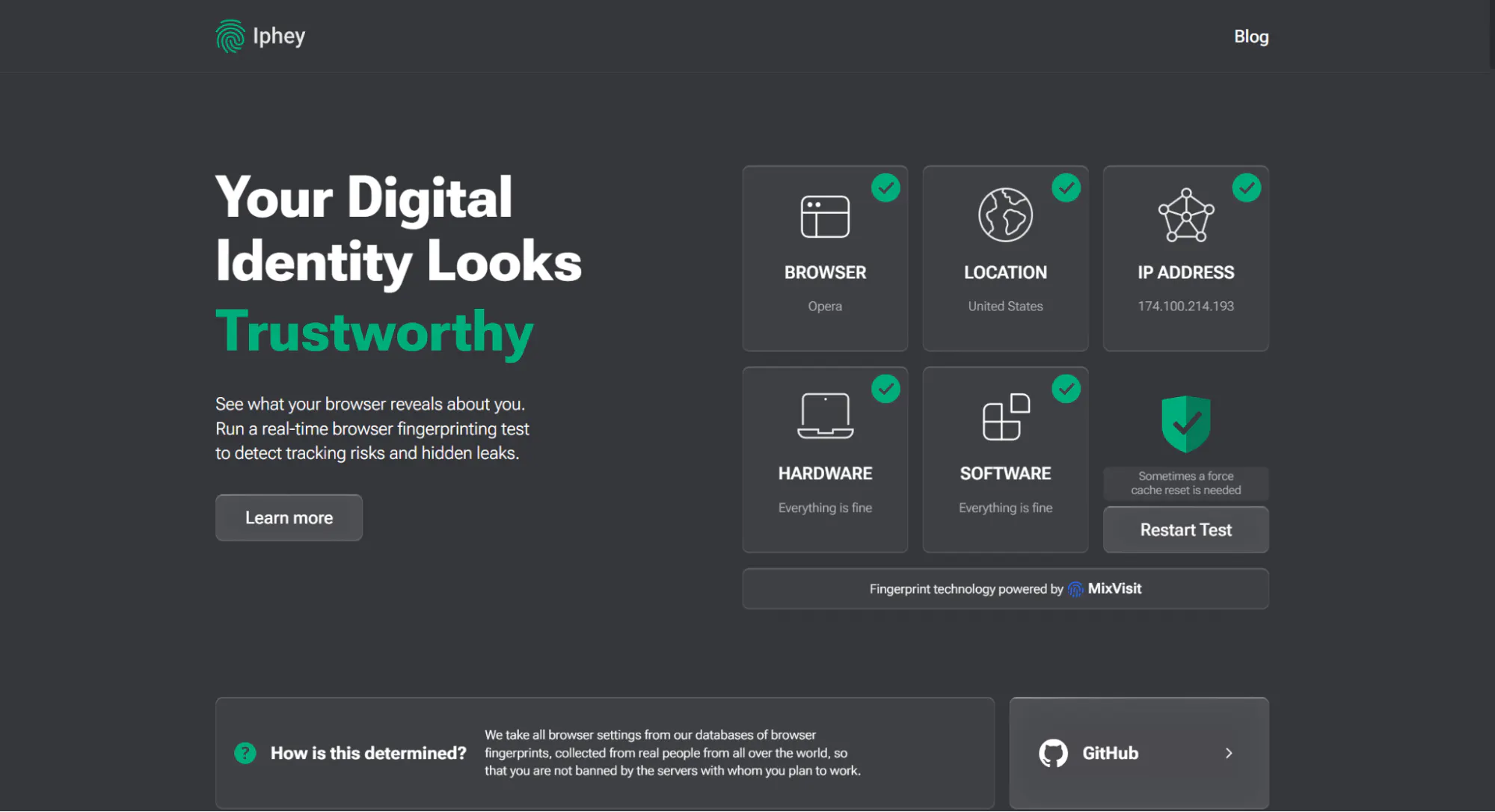
To see the extended list of your very own browser fingerprint, click on “Learn more” or scroll down. Besides the obvious, like IP address and geographical location, your browser collects and knows:
- Hardware: Graphics card, screen resolution, GPU, WebGL, device memory, concurrency, architecture, storage
- Software: timing resolution, Stack Overflow Counter, plugins, fonts, canvas
- Browser: User agent, OS, timezone, language settings
In order to hide their identity on the internet, users resort to circumvention tools such as VPNs or proxies, thinking of them as a cure-all of anonymity. However, it is far from it. Let’s run another test with a proxy:
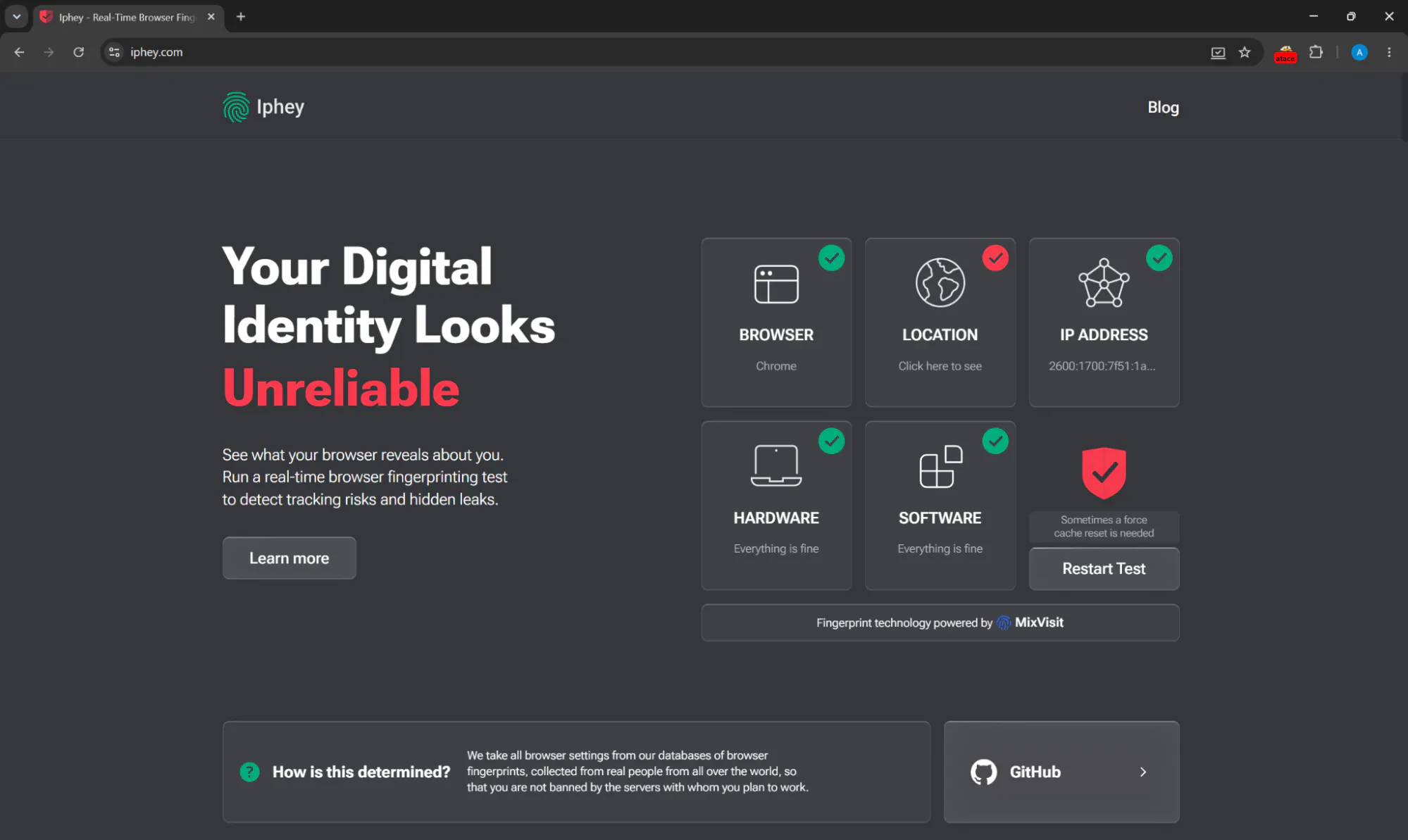
Although my IP address and location did change, the browser fingerprint (hardware, software, browser details) stayed the same. On top of that, Iphey was able to deduce that I’m using a proxy. With that in mind, let’s go over a couple of popular ways that actually help to spoof device ID.
How to Hide Device ID?
In a modern world, the concern for privacy is a natural one. Circumvention tools rise in popularity as people want to access geo-restricted content or protect their online identity and stay anonymous on the internet. As you now know, simply changing your IP doesn’t negate the bigger issue – the browser still sees your device’s specs and, even if it couldn’t remember you, it can easily deduce your true identity, as well as the fact that you’re using a VPN or proxy.
Browser fingerprinting is a completely different beast that requires a custom approach. First of all, wiping your device clean of any possible identifiers will not work as it is completely unnatural, quickly raises suspicion of any site, and immediately gets you flagged as a bot and blocked. That is why modern tools use discreet methods described as “camouflage” rather than complete “disappearance.”
Anti-Detect Browsers
Anti-detect browsers are ultimately the best way to hide device ID as their fingerprint modification technology looks completely natural to trackers, making it harder to spot. Services like Gologin resemble a virtual machine: they create a virtual profile for your device while leaving every detail of your fingerprint customizable. For utmost online privacy, Gologin offers built-in proxies, so in addition to spoofing your device ID, it hides your location and IP address simultaneously and, as a bonus, these proxies are undetectable by the browser.
On top of providing the best speed and connection stability out of all methods mentioned here, Gologin browser is easy to set up and use. After installing the client, go to “All profiles.” There, you can either create your own new profile or pick an existing one that suits your use case. From there, choose a proxy out of 100+ available locations.
Then, you can go to settings next to your profile’s name and refresh your fingerprint entirely or manage individual settings manually.
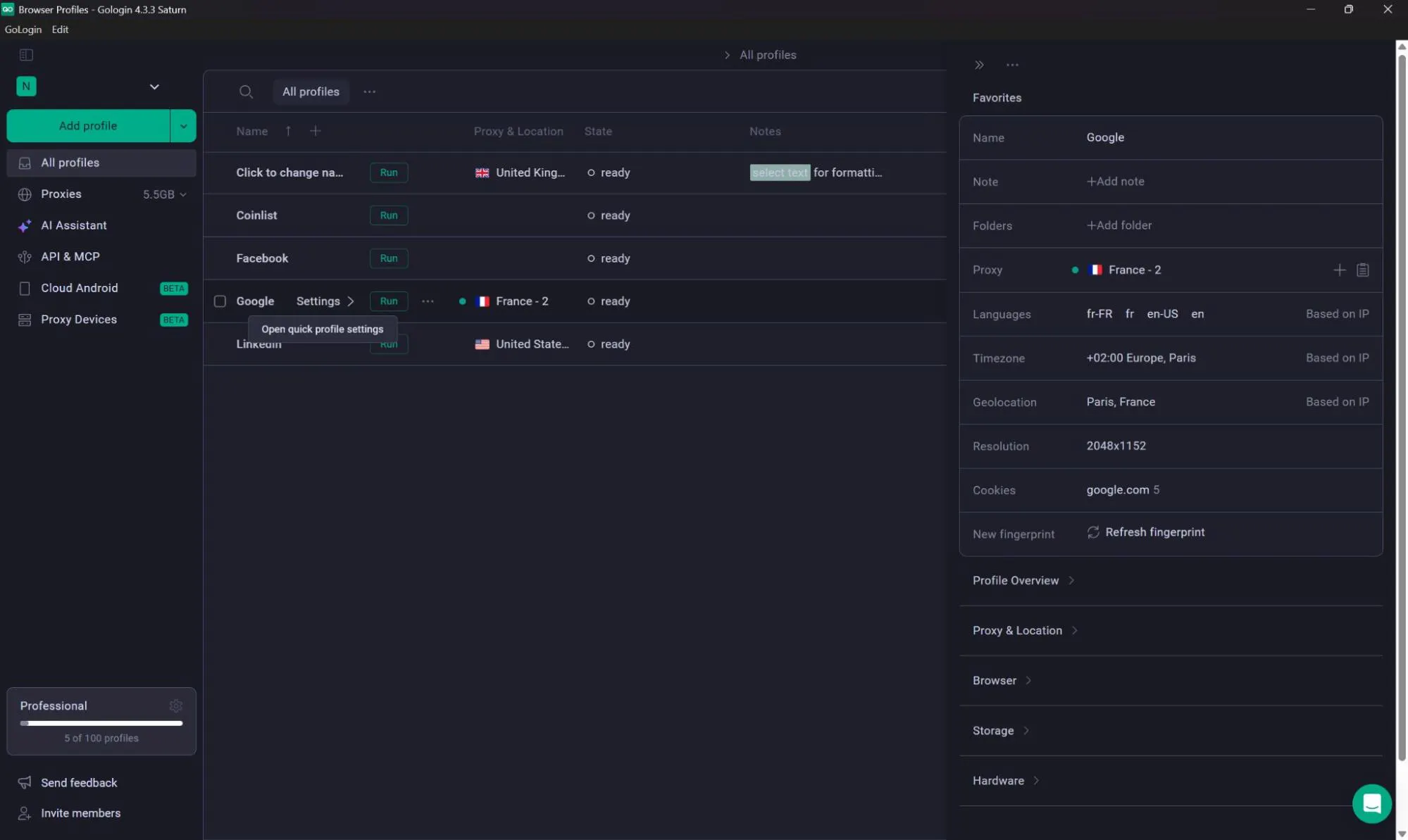
Once you’re all set, simply click the “Run” button and a separate browser window will pop up. To check if all your settings have been enabled, i.e. if your browser fingerprint has changed, you can run an Iphey test again. For example, here is a comparison of two tests I ran with and without Gologin:
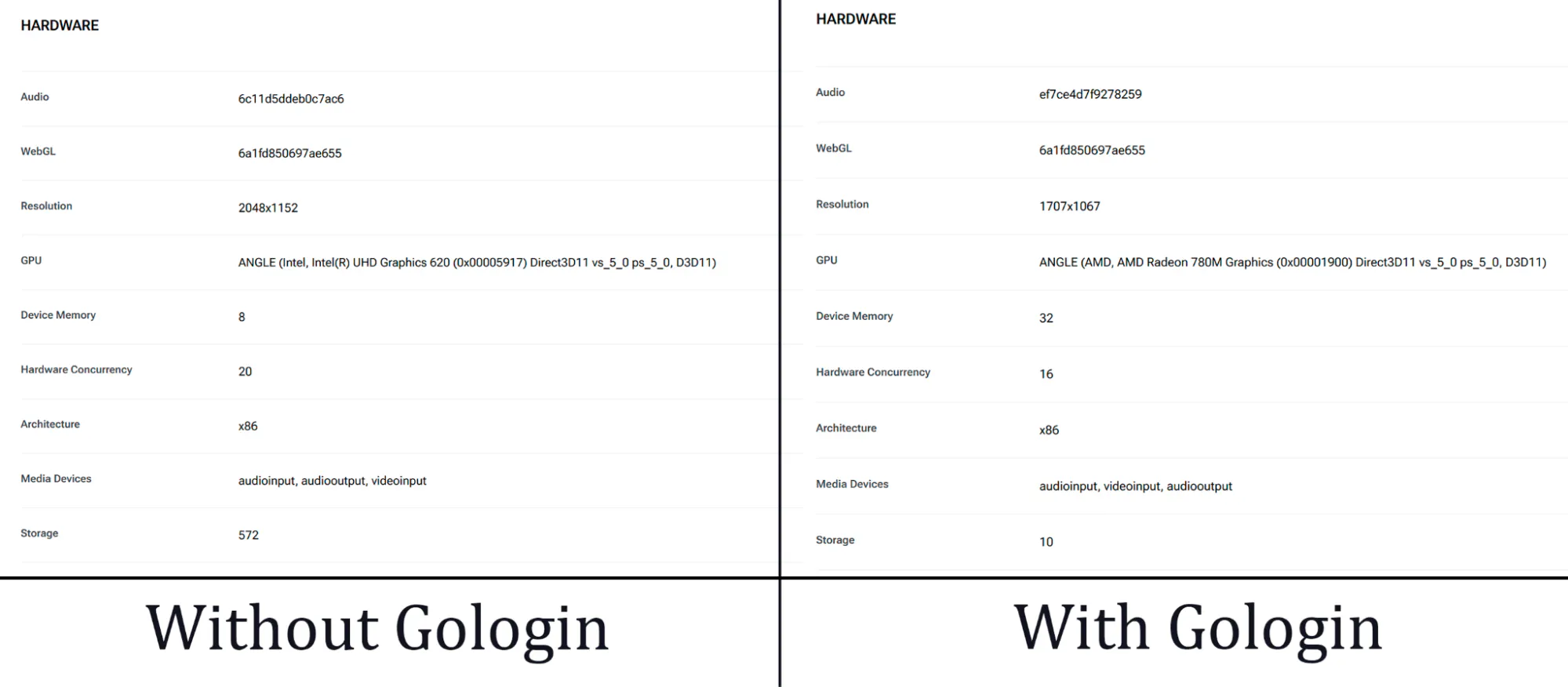
As you can see, the hardware specs (the heart of browser fingerprinting) did in fact change even though the device I ran these tests on stayed the same.
Privacy-Focused Browsers
Browsers like Tor, Brave, and Firefox have built-in anti-fingerprint features which provide decent baseline protection, however they come with certain disadvantages. Anonymous browsers usually employ two distinct tactics:
- Fingerprint randomization
The method, used by Brave, states its primary protection practice right in the name. With each new session the browser randomizes or modifies certain signals to create a new browser fingerprint. Although it does prevent tracking, the constant change of device specs might trigger anti-bot systems on platforms that use device consistency for fraud detection and account trust, as real users are expected to have a consistent fingerprint.
Regular shifting of browser fingerprints might pose an issue for users who need to retain a stable connection to long-term profiles like in social media or e-commerce account management, but it can be a viable option for scraping, where you need to imitate thousands of completely different users.
- Fingerprint uniformity
A simpler method employed by Tor and Firefox (through ‘resistFingerprinting’ mode), where all users are given generic, standardized fingerprint values, making them look identical to websites. The reasoning is also quite simple – when all users wear the same mask, it’s impossible to find out who was under that mask at any given point.
Despite it making sense, that exact reasoning creates a so-called ‘fingerprint paradox’ – the tactic invented to hide you becomes your main identifier. The main problem here is that this mask (widely known to websites and anti-bot systems) is worn by so few internet users that it still makes you stand out from the majority, and in this case you’re just being tracked by the mask itself.
Additionally, this method won’t work great with account-based activity and many modern websites as uniformity here often means spoofing signals the browser deems unnecessary (most commonly Canvas rendering, WebGL, fonts, and audio APIs) but many platforms rely on for basic functioning.
Anti-Fingerprint Extensions
Browser extensions are a part of data points being tracked by fingerprinting, as each add-on makes you look more unique to websites. Considering this, anti-fingerprint extensions, such as CanvasBlocker or CthulhuJs, seem like a counterintuitive measure that ought to create a paradox we’ve gone over in the previous block. And they are.
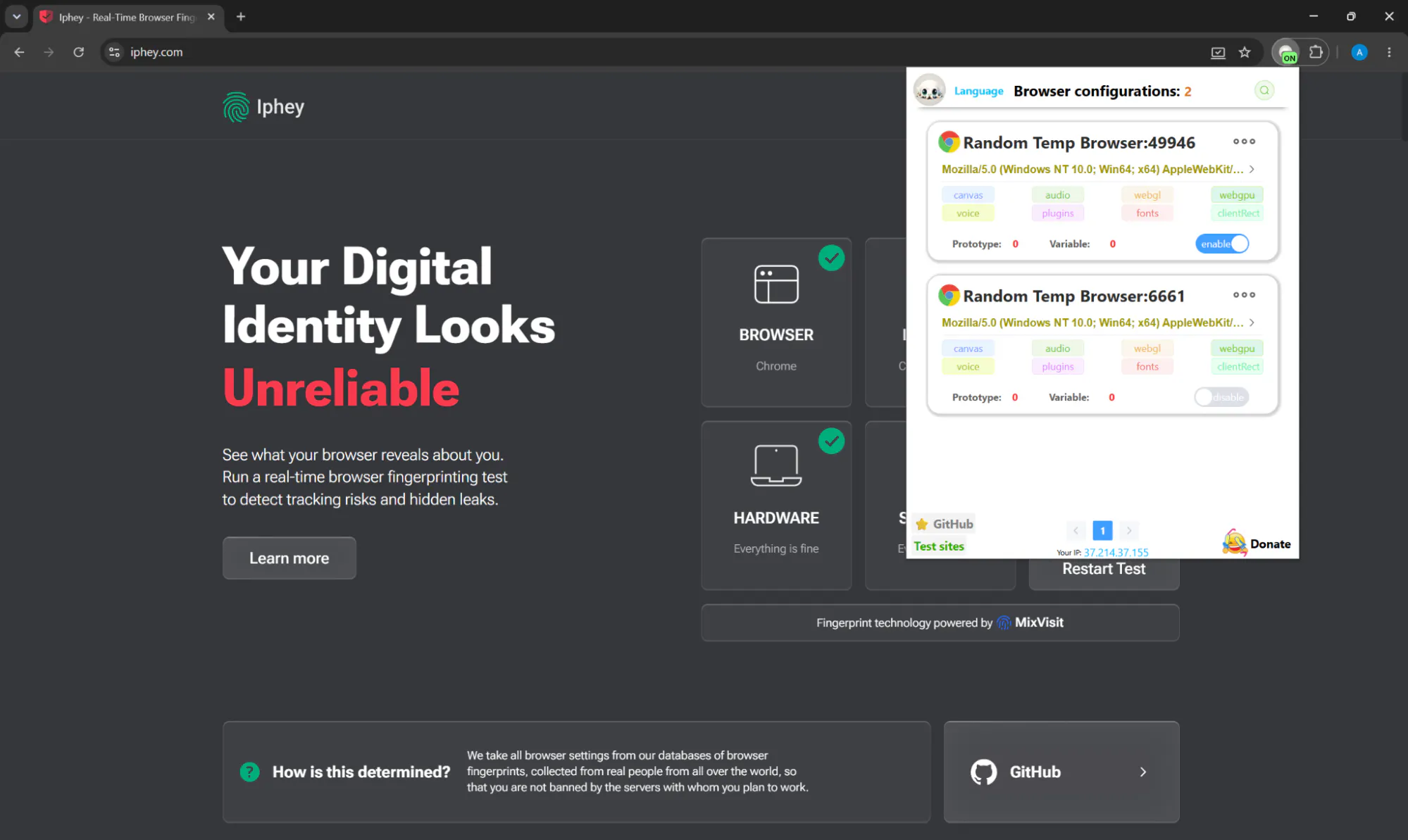
These extensions are often used concurrently with other methods because they are unable to spoof device ID entirely but can mask or hide a few specific signals. Obvious advantages of browser extensions are that they are free of charge and easy to set up, so if you decide to go this route, I’d strongly advise you to test your configurations thoroughly through Iphey to check whether the values actually changed.
Conclusion
If you’re someone who values your online privacy and anonymity, it’s only fair to not be resorting to half-measures – using a VPN to hide your IP address while not paying any mind to a way bigger threat of browser fingerprinting is just that, a half-measure. In order to have full control over your internet activity choose reputable anti-detect browsers like Gologin and to always keep your finger on the pulse, test your connection with Iphey.