

Browser Fingerprinting Techniques: How to Mask Your Browser Fingerprint
A browser fingerprint can reveal your identity even behind a VPN. Learn what it's made of, why clearing cookies won't reset it, and which methods actually work to mask it, from manual tweaks to antidetect browsers.
TL;DR
- A browser fingerprint is a collection of information about your browser and device.
- Websites store browser fingerprints to track which devices belong to which users, what devices they usually login from, and which device is constantly abusing platform terms by switching accounts.
- Browser fingerprints can be masked via multiple methods like manually blocking some requests, disabling some features, and using proxies but all these methods are unreliable, and time consuming.
- Antidetect browsers are the most reliable technique to mask browser fingerprint.
What Does a Browser Fingerprint Consists of?
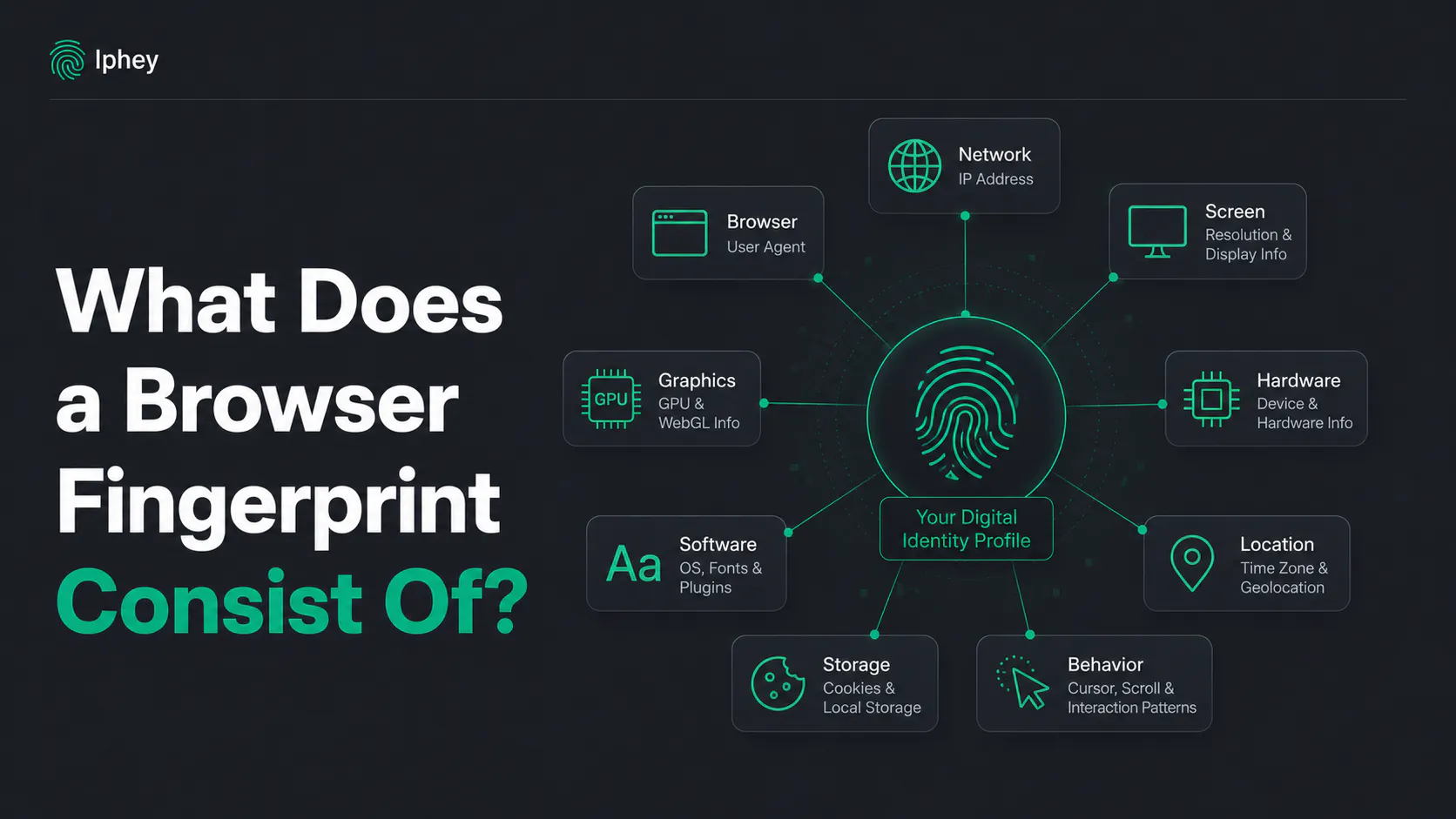
A browser fingerprint is a collection of attributes of your device, network, browser, hardware, and storage, etc. Websites collect all these attributes to store a browser fingerprint of each user so they can track login activity, spam, devices, and more.
Since a browser fingerprint has multiple attributes, a slight change in a user’s device software, or hardware version can make the final fingerprint completely unique. A study found that 81% of the fingerprints created were unique even when 91% of the attributes remained unchanged. This does not mean that fingerprint is permanently unique for everyone but it is a great and reliable method to track users, and their devices.
Here is how I divide the browser fingerprint into multiple categories:
Fingerprint area | Typical signals | Can it be masked? | Main limitation |
Network | IP, ISP, country, DNS, WebRTC routes | Yes | A VPN or proxy does not change most browser properties |
Browser | User-Agent, version, language, headers | Usually | Conflicting header and JavaScript values look suspicious |
Screen | Resolution, viewport, pixel ratio, color depth | Partly | Websites need some values to render correctly |
Graphics | Canvas, WebGL, WebGPU, GPU renderer | Partly | Random or inconsistent outputs can reveal manipulation |
Hardware | CPU cores, memory estimate, touch support | Partly | Exact hardware may still be inferred from other signals |
Software | Fonts, emoji rendering, plugins, extensions | Partly | Rare combinations may increase uniqueness |
Location | Time zone, locale, language, IP country | Yes | All location-related values need to agree |
Behavior | Mouse movement, timing, navigation, automation | Not reliably | Behavior is created during the session |
Storage | Cookies, local storage, cache identifiers | Yes | Clearing storage does not reset the device fingerprint |
How to Mask Your Browser Fingerprint?
Masking a browser fingerprint means altering your browser or device behavior in a way that it produces a completely unique browser fingerprint then the original one. Masking your browser fingerprint helps you avoid detection, browser multiple social media accounts on one device, at once, without getting restricted, or for crypto trading, etc.
To mask your browser fingerprint, you need to understand the table I’ve put above. Here are the most important pieces in a browser fingerprint:
- IP Address: Your IP, and geolocation must be completely different from your actual one
- User Agent: Your user-agent must be also different so the website cannot figure out that its the same guy with a different IP.
- Canvas and WebGL: Adding noise to your browser’s webGL API or GPU stats can alter your Canvas and WebGL fingerprint values making your device look unique.
- Storage & Cookies: Websites can track users by cookies. If you don’t isolate or delete previous cookies, the website will instantly know you’ve spoofed all other signals.
These four attributes are more important than the rest. Make sure you’ve aligned your device timezone with the proxy you’re using.
5 Techniques to Mask Browser Fingerprint
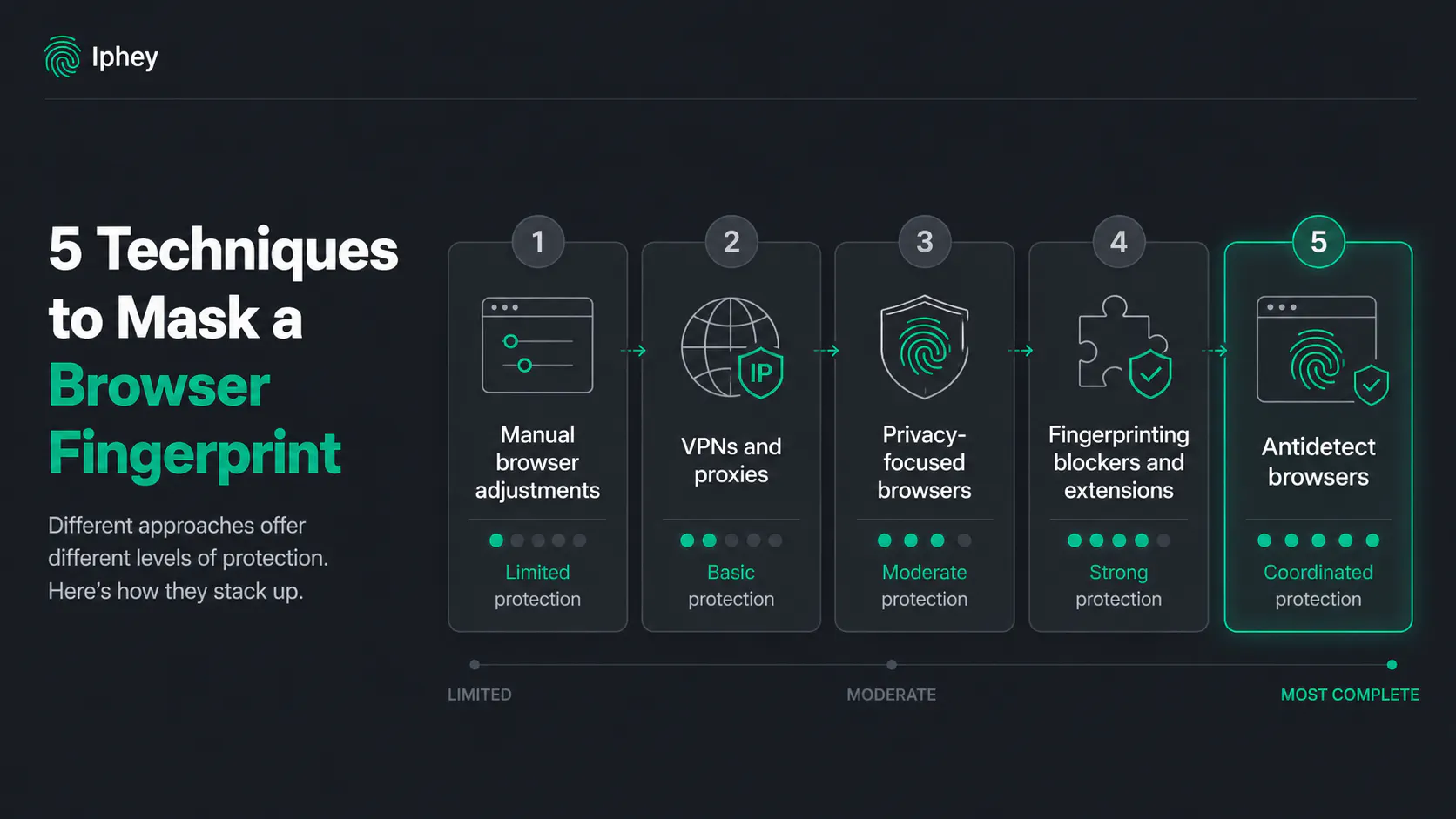
I’ve tested and compared multiple browser fingerprinting techniques to figure out which method is the easiest, and the most reliable. Here are my findings.
1. Manual Browser Adjustments
If you manually change your browser and OS settings like language, fonts, remove extensions, disable WebGL, graphic rendering, and clear storage etc, your fingerprint changes. However, websites are still able to track you because of your IP address which stays the same.
I don’t recommend this method because it is outdated, requires too much work every time you need to change your browser fingerprint, and is easily detected by advanced detection systems like Meta and X. Inconsistent User-Agent information can cause anti-bot and anti-fraud systems to reject requests.
2. VPNs and Proxies
If you use a VPN, and the first method, you can achieve some level of anonymity. Your IP address would be different via a VPN. You can match the timezone, language, and geolocation to your VPN, make a few adjustments to browser settings and most of the fingerprint attributes would be unique.
This approach is fine if you’re browsing websites that don’t take fingerprint masking seriously. Please do not try it on social media platforms as it is seen as a spam attempt. Your account might get restricted.
3. Privacy-focused browsers
If you don’t want to manually change settings, you can use privacy browsers like Firefox and Brave. These browsers have fingerprinting protection features that can block requests from websites to extract your fingerprint information. Not all requests are blocked but even some requests can make a huge difference.
These browsers do not aggressively mask complete browser fingerprints because it can break website functionality and UI. However, the problem with privacy focused browsers is that websites can still save whatever fingerprint these browsers provide them. If you now want to open another account on the same browser without getting banned, or run automations, you can’t because the platform has your Firefox or Brave browser fingerprint.
4. Anti-fingerprinting Extensions and Blockers
There are several browser extensions that can block selected API calls from websites to request your device info, WebGL, or Canvas fingerprint. These extensions either block the request or add random noise to the output to change the fingerprint.
Extensions are convenient, but they have limitations. An extension usually only masks one attribute, and does not hide other ones. Secondly, blocking API requests from websites can also be seen as spam and your access can be restricted by the platform until you lift off those restrictions.
Antidetect Browsers
An antidetect browser is the most complete, reliable and convenient solution for browser fingerprint. An antidetect browser like Gologin or 1Browser can mask user agent, screen resolution, hardware specs, software versions, timezone, IP, geolocation, and every other fingerprint attribute.
A browser like Gologin can mask 50+ browser attributes to create highly unique fingerprints. If you’re serious about running multiple accounts at once, or crypto trading, etc, a serious option like Gologin is what I would recommend.
With antidetect browsers, every browser profile acts like a unique device with its own IP and fingerprint. This makes managing multiple accounts easier for businesses, agencies, and traders.
How I Check a Browser Fingerprint with Iphey
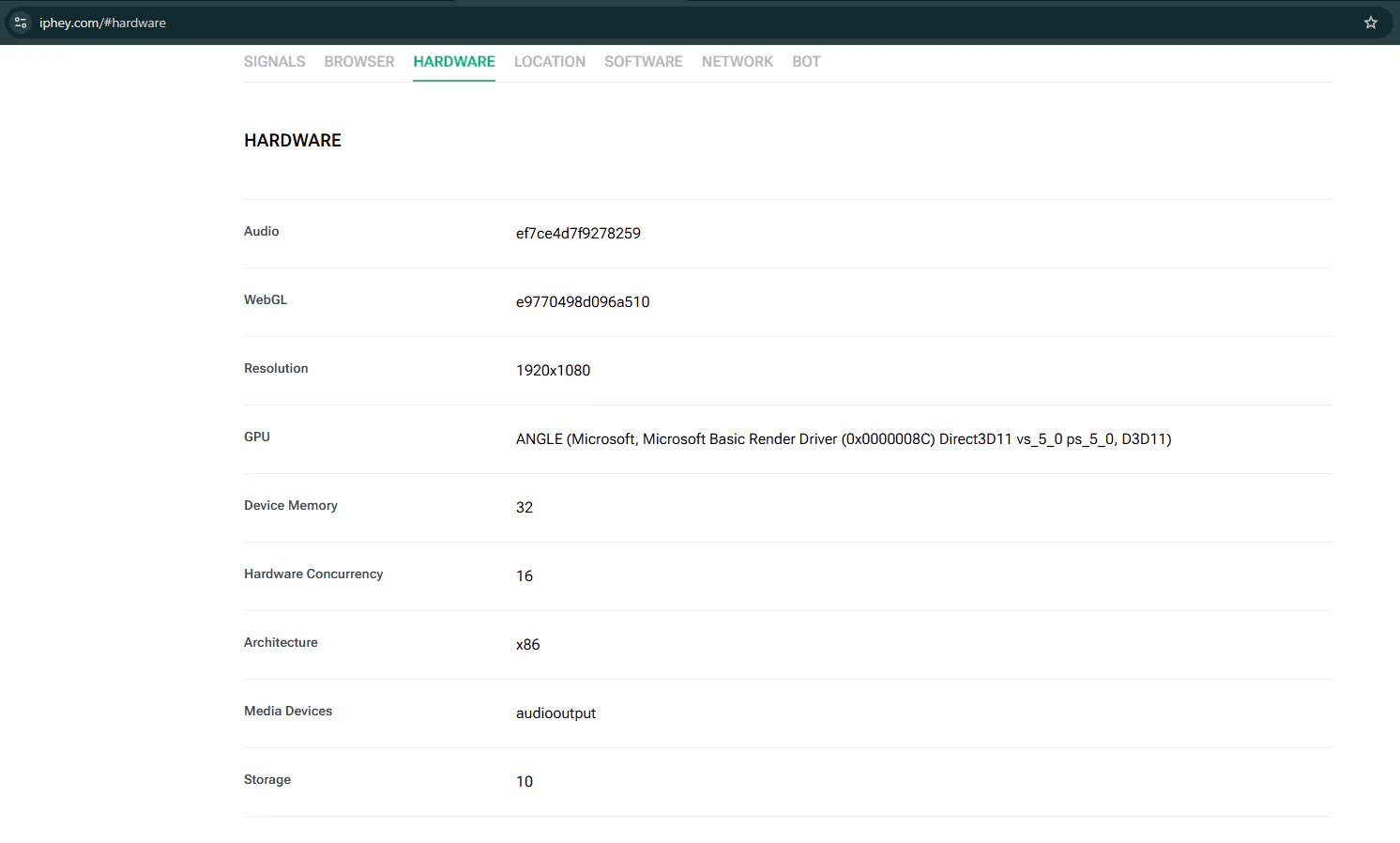
For any method you end up choosing, you can always check your browser fingerprint with Iphey. You can see your user agent, your WebGL hash, WebRTC hash, Canvas hash, timezone, geolocation, and other fingerprint attributes.
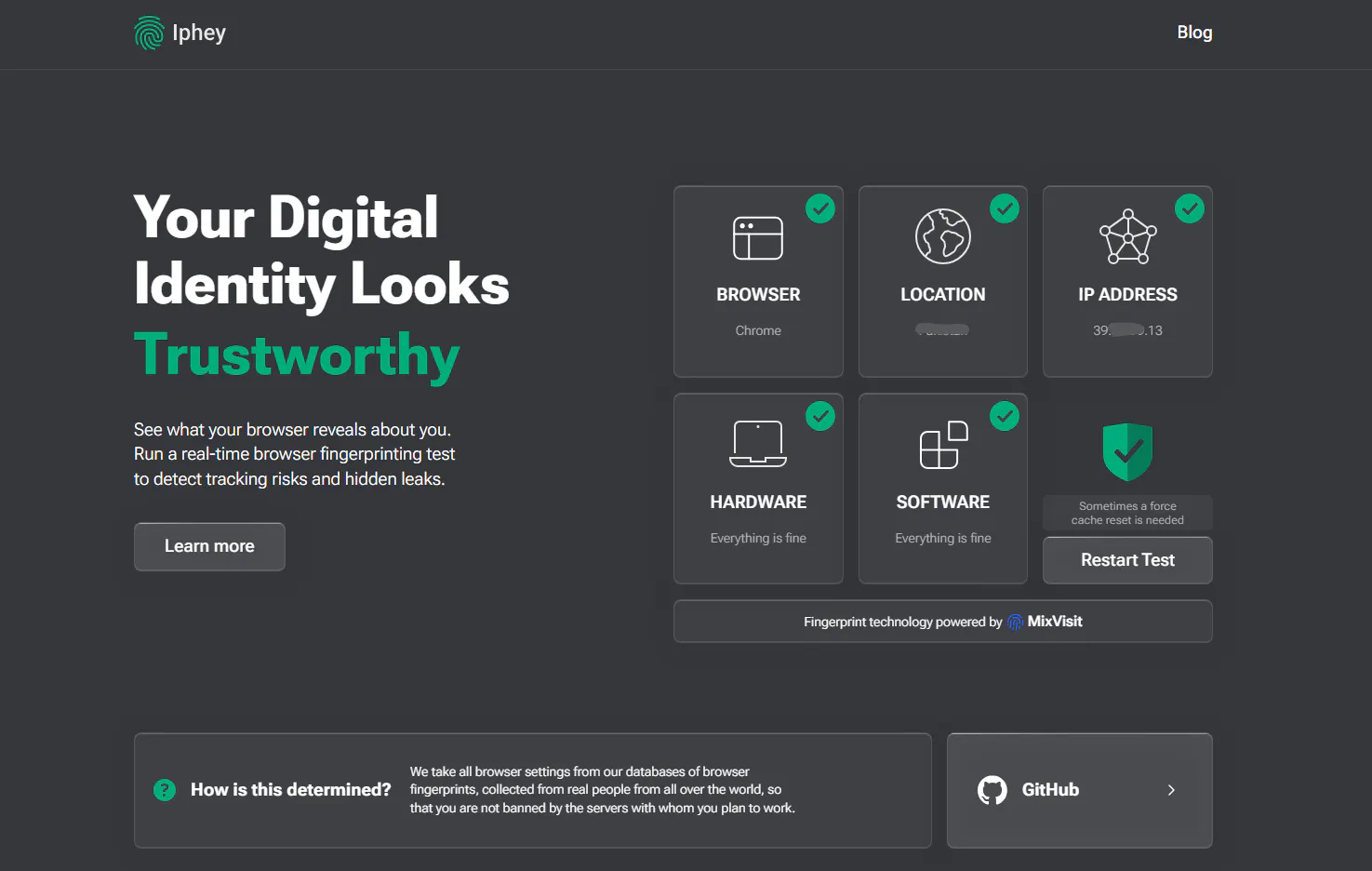
If you’re testing multiple fingerprinting methods, you can check your real device fingerprint with Iphey, mask fingerprint, and check again and compare results.
I would suggest you record a baseline fingerprint first. Afterwards, make necessary fingerprint changes and verify which methods yield the best results. Iphey will detect your fingerpit and tell you if your fingerprint looks legit or fake.
Final Thoughts
Browser fingerprint is information about your device hardware, software and your browser. Websites use it to verify device sessions, track user activity and cross-device activity, link devices to user accounts, and prevent spammers from abusing the platform.
To check your browser fingerprint, you can run a quick scan via Iphey. To mask your website, the most reliable method I’ve found is antidetect browsers. Using a browser like Gologin or 1Browser can mask your browser fingerprint, and make your session look totally unique. This way, you can run multiple accounts at once in different browser profiles without the risk of getting banned.